When you need to send or keep several photos as one document, a PDF is easier to handle than a bundle of separate files. BatchPDF combines selected images into one PDF and lets you review page order before saving. Here is a short path from a folder of photos to a finished file.
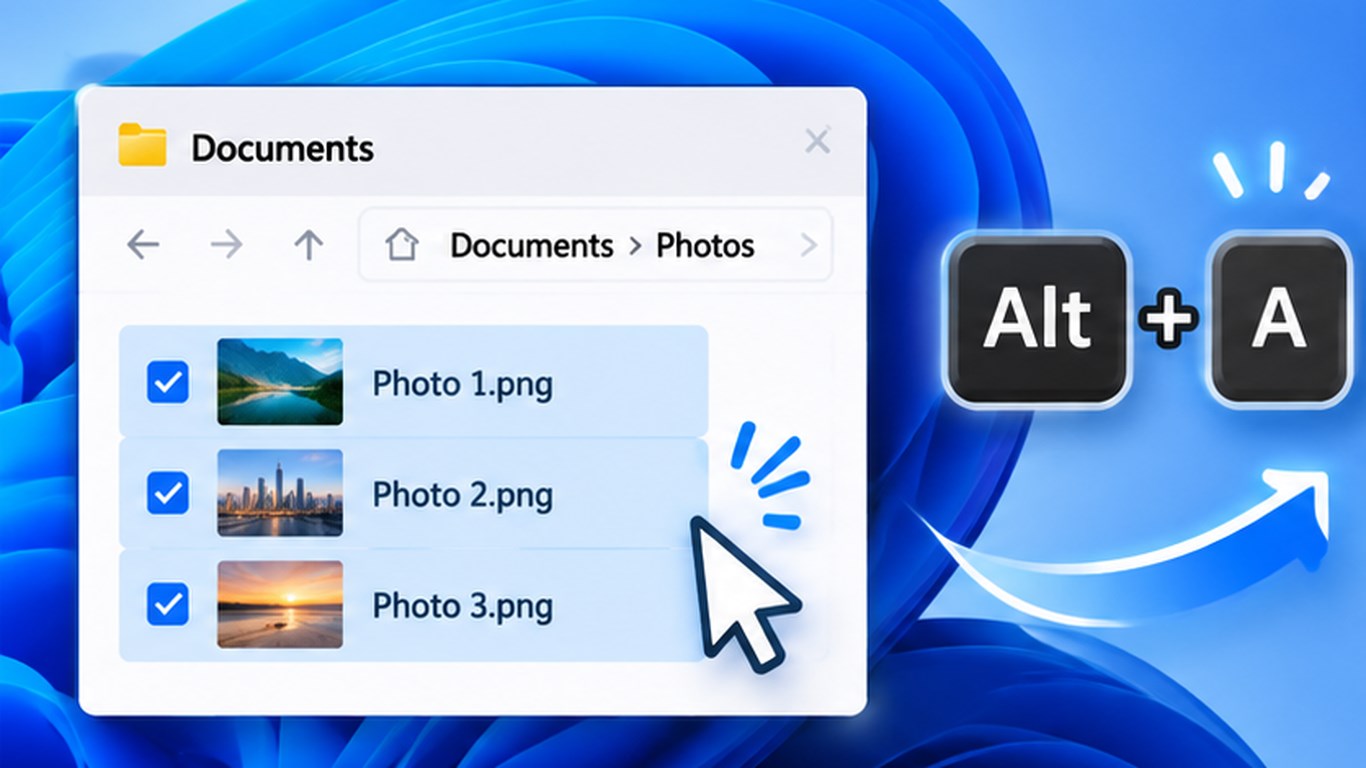
1. Select photos in File Explorer
Open the Windows folder containing your images and select the photos you want. Press Alt+A to open BatchPDF with a thumbnail preview. If you want to add files individually or extend the list from inside the app, use its file picker.
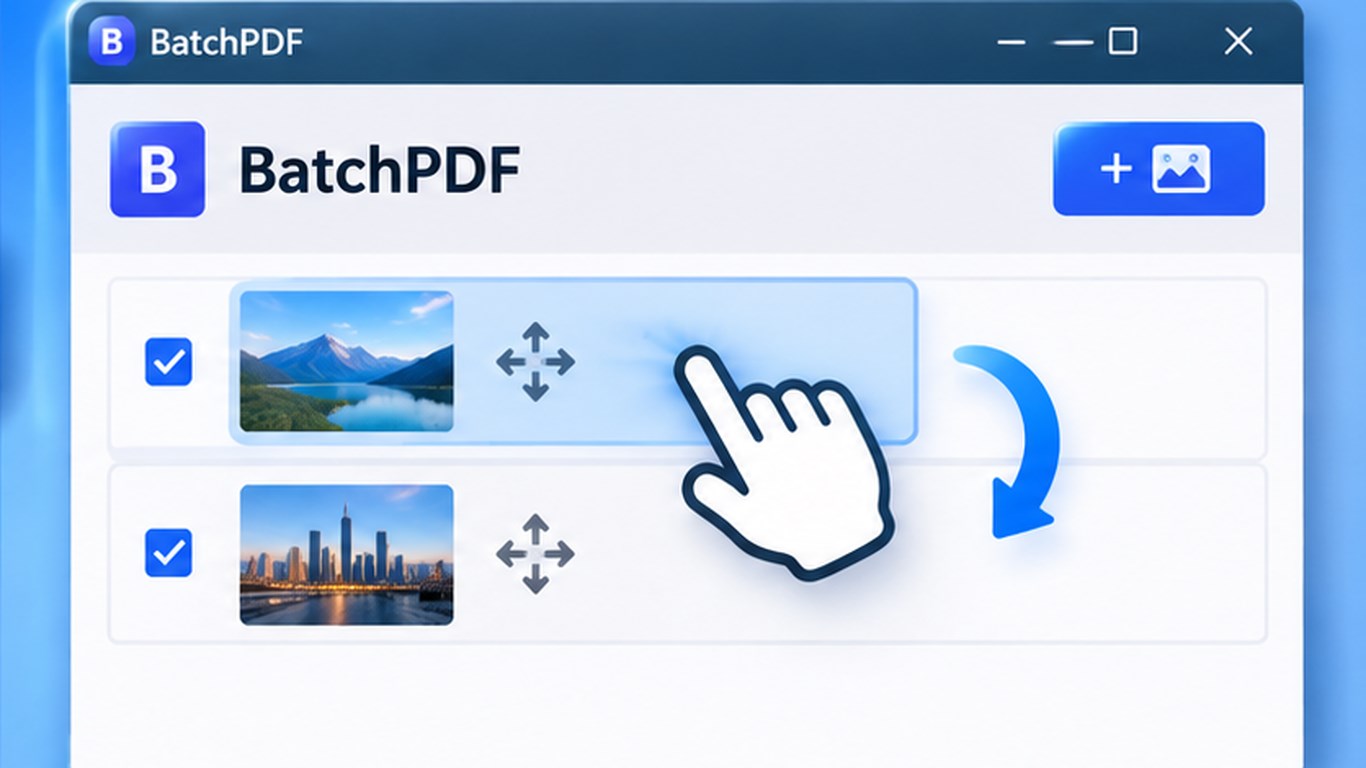
2. Put the pages in order
Review the thumbnails and drag them into the sequence you want. This helps when collecting receipts, travel photos, documents, or pages from study material. Each image becomes its own PDF page, and the page orientation is selected automatically to match the image.
3. Choose a name and folder
By default, BatchPDF suggests a file named photo.pdf in the folder containing the source photos. Before creating the PDF, you can change both the document name and save location. The photo list is cleared after creation, so you can start a fresh set for another PDF.
Images stay on your computer
According to the Microsoft Store description, BatchPDF processes images locally and does not upload them to the internet. This can be useful when combining personal photos on your PC. The app also offers a 15-language interface, optional Windows startup, and system tray access.
When this workflow fits
BatchPDF is designed for a straightforward task: select photos, arrange them, and create one PDF page per image. If a photo needs editing before it goes into the document, edit it separately first. See the BatchPDF — Turn Photos into a PDF on Windows page for the interface and feature overview.
Source
Steps and features are based on the official BatchPDF listing in Microsoft Store.
See the app interface